Supplier Login
To log in for the first time, locate the email sent by SOAR. The invitation email will include details on how to update the supplier profile, and it will also include the company name, username and a temporary password.
The invitation will look similar to this email:
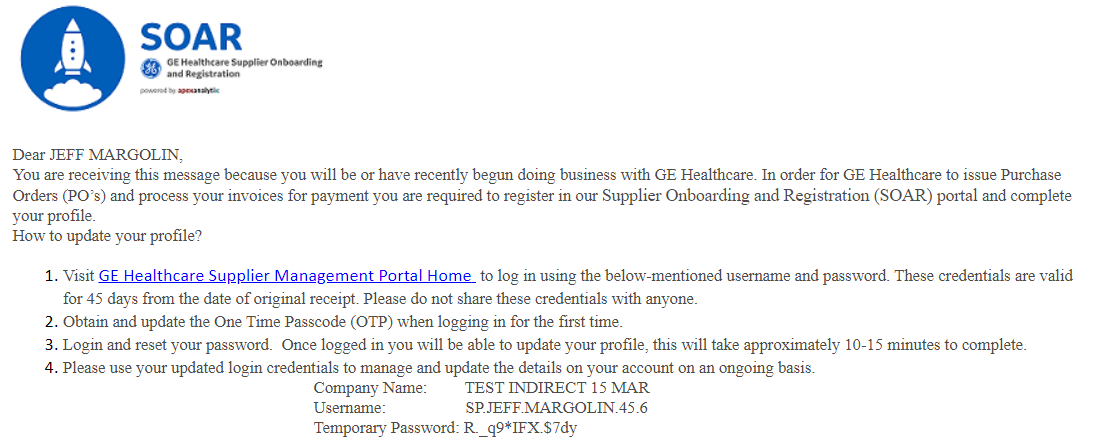
Supplier Login Instructions
Click the GE Healthcare Supplier Management Portal Home link in the email or here.
Log in with the username provided in the email.
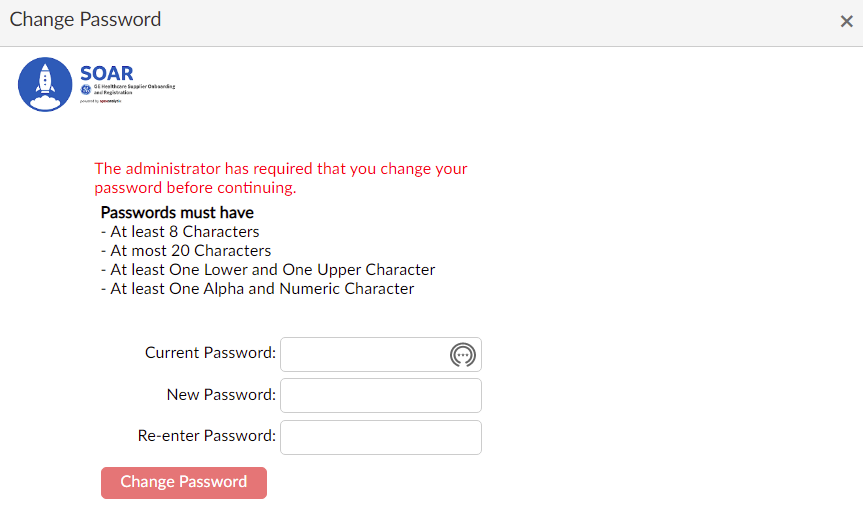
Enter the temporary password provided in the email into the Current Password field.
Select a new password in the New Password field. Then re-enter the new password.
Click Change Password to validate the new password.

Subsequent logins may prompt the multifactor authentication process. More than three invalid login attempts will lock the account. Visit Multifactor Authentication for further information. For account lockout or login assistance contact the GE Healthcare SOAR Help Desk Team at SOAR.Helpdesk@ge.com.

The temporary password must be changed to a new password before proceeding to the registration process. The new password must have at least 8 characters, but no more than 20 that consists of one lower and upper case character and one alpha and numeric character.
Supplier SSO Login Instructions
Click the SOAR SSO link.
Enter the GE Healthcare SSO ID.
Enter a password.
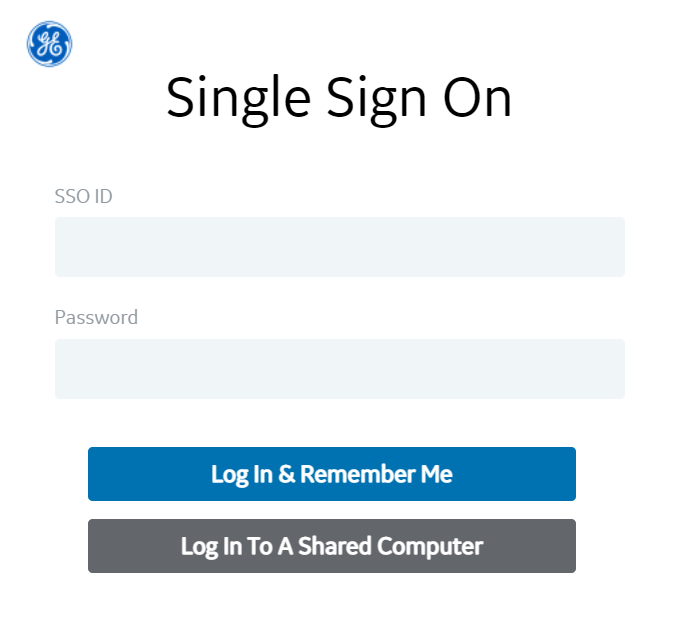
Click Log In & Remember Me.